How I Connected OpenClaw to Telegram in 10 Minutes
Learn how to connect OpenClaw to Telegram step-by-step. Create a bot, configure channels, pair your device, and control your AI agent from anywhere in 10 minutes.

If you've already installed OpenClaw (check out my 3 Ways How to Install OpenClaw post if you haven't), the next logical step is connecting it to a channel you actually use. Channels in terms of OpenClaw refers to communicaiton channels. OpenClaw supports basically evey messaging platform like WhatsApp, Discord, Signal, and a lot more but we will focus on getting started with Telegram.
I don't have a lot of real people contacts using Telegram so it reduces the blast radius if something goes wrong.
Why to choose Telegram for OpenClaw:
- Programmable: Telegram is highly programmable
- Free Bot API: WhatsApp and iMessage require business accounts, approval processes, or paid tiers. Telegram's Bot API is completely free with no rate limit headaches for personal/small team use.
- Forum supergroups / Topics: This is a big one for your setup. Telegram lets you create threaded topic channels within a single group. OpenClaw treats each topic as a separate session automatically, which is why you can have one Telegram group with topics for jackpots, newsletter, and dev — all isolated conversations with the same agent.
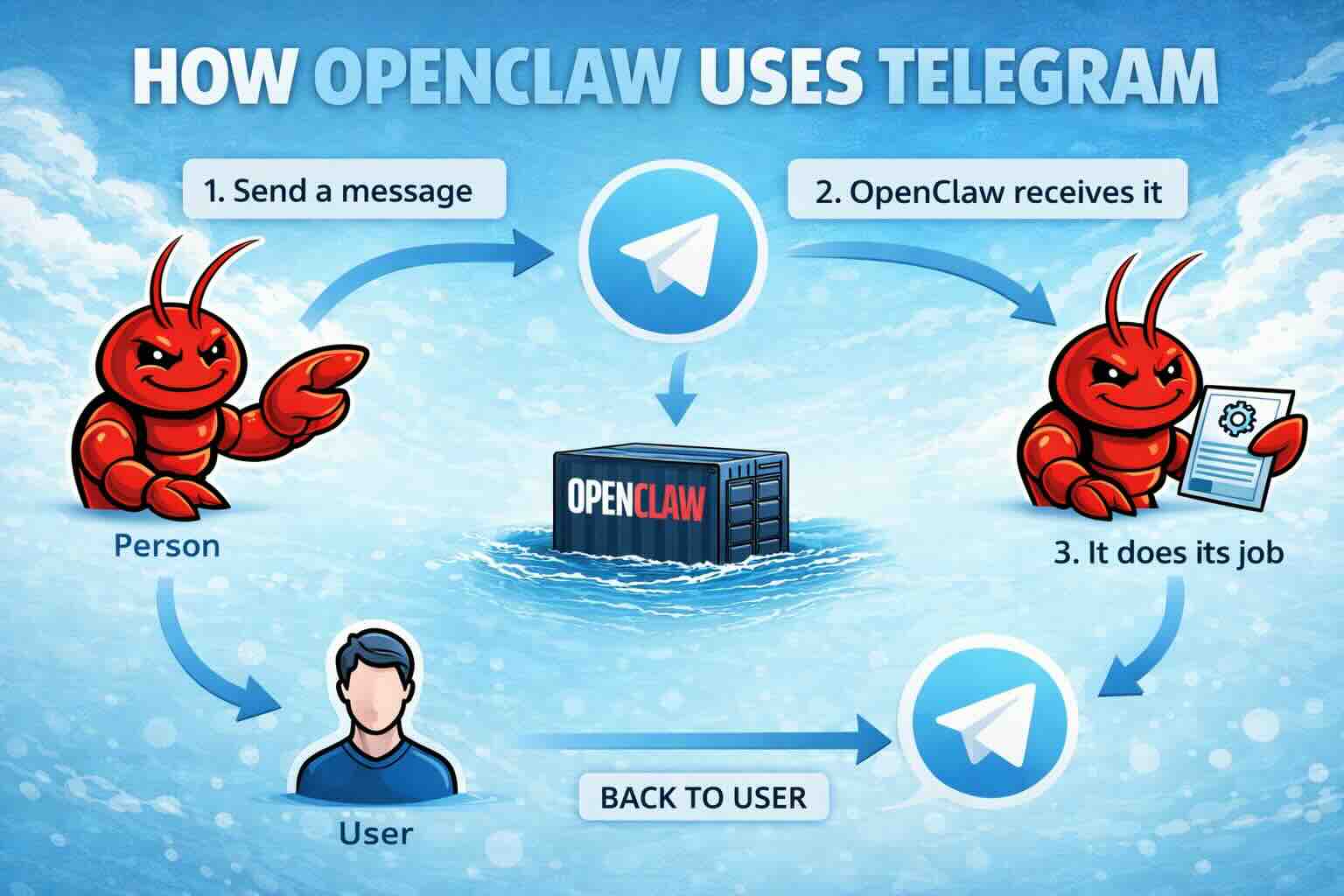
Why use a messaging tool like Telegram to interface with OpenClaw? Because I can control my AI agent from my phone while I'm on a mountain bike ride, waiting at the airport, or anywhere away from my desk. Once OpenClaw is paired with Telegram, your agent is always one message away.
Here's exactly how I set it up, and yes, it really does take about 10 minutes.
What You'll Need
- OpenClaw installed and running (see install guide)
- A Telegram account
- Access to the command line of the server running OpenClaw.
Step 1: Create Your Telegram Bot via BotFather
Everything starts with BotFather: Telegram's official bot for creating bots. Becareful as several accounts claim to be the @Botfather but an easy way to differentiate is BotFather is a verified account and has millions of active users. See the screenshot.

- Open Telegram and search for @BotFather
- Send
/newbot - Give it a name (e.g., "My OpenClaw Agent")
- Give it a username ending in
bot(e.g.,myopenclaw_bot) - Save the bot token BotFather gives you, you'll need it in the next step
Critical: Disable privacy mode so your bot can read group messages:
/setprivacy→ select your bot → Group Privacy → Disable/setjoingroups→ Enable
If you skip this, the bot will be deaf to group conversations.
Stay Updated
Get actionable AI & tech insights delivered every Friday. No fluff, just value.
Subscribe to The Weekly Byte →Step 2: Configure OpenClaw
Connect to your OpenClaw server and edit your OpenClaw config at ~/.openclaw/openclaw.json and add the Telegram channel block:
{
  "channels": {
    "telegram": {
      "enabled": true,
      "botToken": "YOUR_BOT_TOKEN_HERE",
      "dmPolicy": "pairing",
      "groupPolicy": "allowlist",
      "groupAllowFrom": ["YOUR_TELEGRAM_USER_ID"]
    }
  }
}
To get your Telegram user ID, send any message to your new bot and then run the following command on your OpenClaw server:
openclaw logs --follow
That numeric ID which is called chat= in the log is what goes in groupAllowFrom.
Step 3: Restart the Gateway
openclaw gateway restart
openclaw channels status
Check that Telegram shows as connected in the output.
Step 4: Pair Your Device
This is the step most people miss. OpenClaw uses a pairing flow. Telegram initiates, the server approves. Not the other way around.
- Open Telegram and DM your bot — send
/startor/pair - You'll receive a pairing code in the chat
- Back on your server, approve it:
openclaw pairing approve telegram YOUR_PAIRING_CODE
That's it. Send a test message to your bot and watch it respond.
Verify everything is live by running the log command on your OpenClaw server and send a couple test messages:
openclaw logs --follow
Stay Updated
Get actionable AI & tech insights delivered every Friday. No fluff, just value.
Subscribe to The Weekly Byte →Step 5 (Optional): Add Telegram Groups
Running multiple projects? I do — content, health, and dev work. I set up separate Telegram groups for each so conversations stay organized.
Add groups to your config:
"groups": {
  "-1001234567890": {
    "requireMention": true,
    "allowFrom": ["YOUR_TELEGRAM_USER_ID"]
  }
}
Or use a wildcard to apply the same settings to all groups:
"groups": {
  "*": {
    "requireMention": true,
    "allowFrom": ["YOUR_TELEGRAM_USER_ID"]
  }
}
Pro tip: Use requireMention: true to start. It means the bot only responds when you @mention it in a group, which prevents it from jumping into every message.
To find your group's chat ID:
# Watch logs after sending a message in the group
openclaw logs --follow
# Look for a negative number like -1001234567890
CLI vs Telegram: Know the Difference
One thing worth understanding — the CLI and Telegram serve different purposes:
- CLI (
openclaw) is your admin tool: configure, manage, diagnose - Telegram is your steering wheel: actually talk to and task your agent
Use the CLI to set things up and manage OpenClaw, use Telegram to run your AI day-to-day.
Troubleshooting
"Gateway is only bound to loopback" — This blocks Telegram pairing. Temporarily switch to LAN for pairing:
openclaw config set gateway.bind lan
openclaw gateway restart
Pair your device, then switch back:
openclaw config set gateway.bind loopback
openclaw gateway restart
Pairing code not working — Make sure you're passing both the channel and the code:
openclaw pairing approve telegram YOUR_CODE
Not just the code alone — that's a common gotcha I hit myself.
Bot not responding in groups — Remove and re-add the bot to the group after disabling privacy mode in BotFather. Changes don't apply retroactively.
What's Next
Now that OpenClaw is live on Telegram, the real fun starts, creating specialized agents for different workflows. I've got separate agents for newsletter curation, health, and dev tasks, each in their own Telegram group.
I'll cover that setup in the next post. In the meantime, make sure your installation is properly hardened — check out my OpenClaw Security Hardening Checklist before you start delegating real tasks to your agent.
Follow me
If you liked this article, Follow Me on Twitter to stay updated!